How to Conduct a Web Accessibility Audit Using Free Tools: A Step-by-S
Published on: 14 Jun 2026
How to Conduct a Web Accessibility Audit Using Free Tools: A Step-by-Step Guide for Indian Businesses
Introduction
In today's digital-first world, web accessibility is no longer optional. It's a legal requirement in many countries and a moral imperative. For Indian businesses, making your website accessible means opening your doors to over 100 million people with disabilities in India alone. But where do you start? An accessibility audit is the first step. And the good news? You don't need an expensive consultant or enterprise tools. With free tools and a systematic approach, you can conduct a thorough audit yourself. This guide walks you through the entire process, from understanding WCAG guidelines to fixing common issues. Let's make the web work for everyone.
Learn more about our Website services
Think about it: every time someone cannot access your content, you lose a potential customer. Accessibility isn't just about compliance; it's about reaching a vast, underserved audience. In India, where digital adoption is skyrocketing, ensuring your website is inclusive can set you apart from competitors. Plus, accessible websites often rank better in search engines and provide a better user experience for all visitors, including those on slow connections or older devices.
Main Section 1: Understanding Web Accessibility Audits
A web accessibility audit evaluates how well your website can be used by people with disabilities, including those with visual, auditory, motor, or cognitive impairments. The goal is to identify barriers and ensure compliance with standards like the Web Content Accessibility Guidelines (WCAG) 2.1, which is the global benchmark.
For Indian businesses, compliance with the Rights of Persons with Disabilities Act, 2016 is also relevant. This act mandates equal access to digital services for persons with disabilities. An audit helps you meet these legal requirements and avoid potential lawsuits. For example, in 2020, a major Indian e-commerce platform faced a legal notice for inaccessible features, highlighting the growing scrutiny in this area.
An audit typically covers four principles:
- Perceivable: Information must be presented in ways users can perceive, e.g., alt text for images, captions for videos, and sufficient color contrast.
- Operable: Interface and navigation must be operable, e.g., keyboard-friendly, no time limits that can't be extended, and avoid flashing content that could trigger seizures.
- Understandable: Content and operation must be understandable, e.g., clear error messages, predictable navigation, and readable text.
- Robust: Content must be robust enough to work with assistive technologies like screen readers, magnifiers, and voice control software.
By conducting an audit, you'll uncover issues like missing alt text, poor color contrast, inaccessible forms, and more. The process is iterative: test, fix, retest. Remember, accessibility is not a one-time project but an ongoing commitment.
Main Section 2: Step-by-Step Guide to Conducting a Free Accessibility Audit
Step 1: Choose Your Free Tools
You don't need to spend a rupee. Here are the best free tools for Indian businesses:
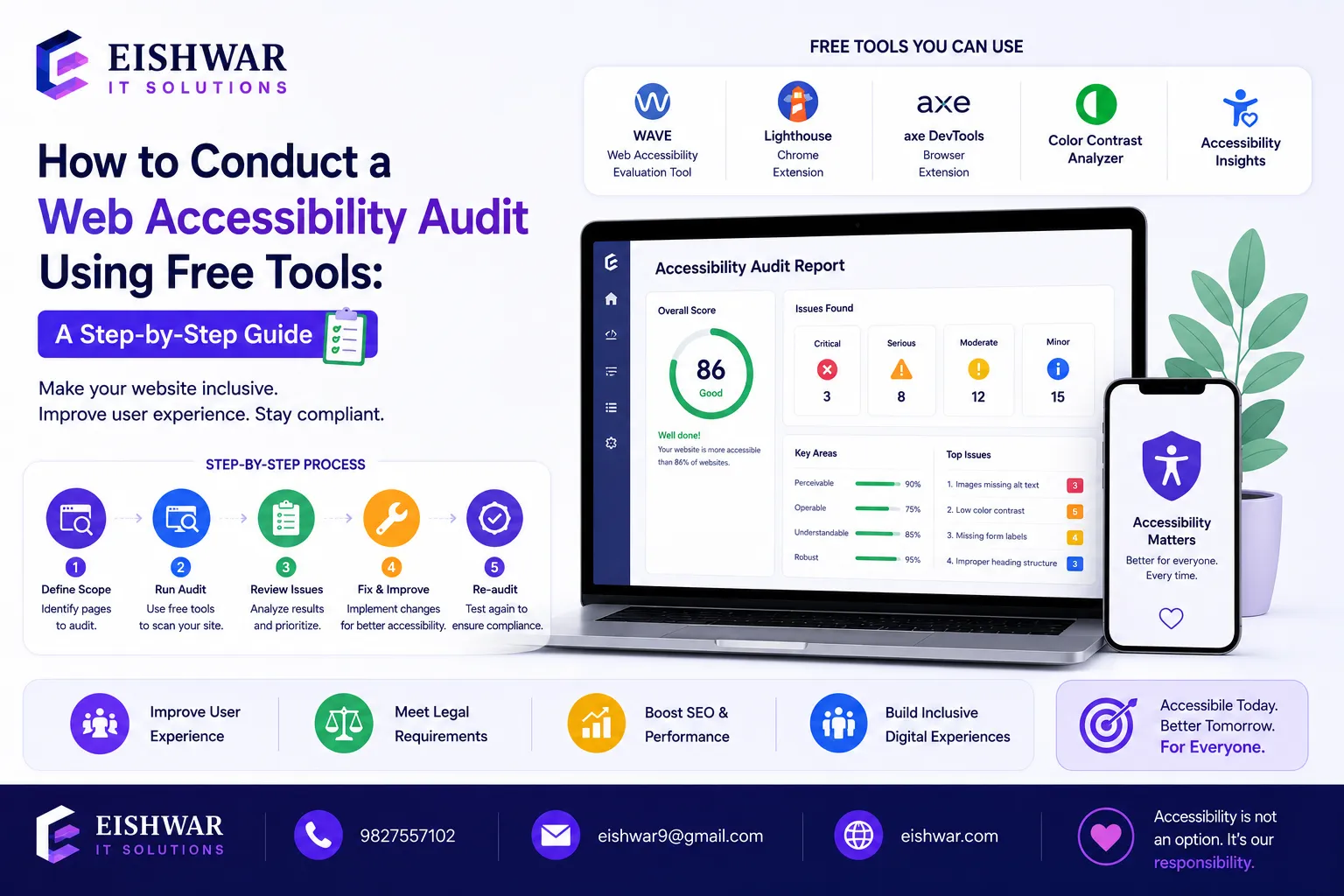
- WAVE (Web Accessibility Evaluation Tool): A browser extension that provides visual feedback on your page, highlighting errors (red icons) and alerts (yellow icons). It's great for quick checks.
- axe DevTools: A powerful browser extension that finds and explains accessibility issues in detail, with links to WCAG criteria. It integrates well with developer workflows.
- Lighthouse (built into Chrome DevTools): Generates an accessibility score and actionable recommendations. Use it for a baseline audit of key pages.
- Colour Contrast Analyser: A desktop app that checks color contrast ratios against WCAG AA and AAA standards. Essential for design reviews.
- NVDA (NonVisual Desktop Access): A free screen reader for Windows that lets you experience your site as a blind user would. Pair it with Chrome or Firefox.
Combine tools for a comprehensive audit. No single tool catches everything. For instance, WAVE might miss some dynamic content issues that axe DevTools picks up. Use them together for the best coverage.
👉 Don't wait for the perfect moment; turn your vision into reality today.
Free ConsultationStep 2: Perform Automated Testing
Start with automated checks. Open your website in Chrome, run Lighthouse (F12 > Lighthouse > Accessibility), and note the score. Aim for a score of 90 or above. Then install the WAVE extension and click it on your page. Red icons indicate errors, yellow are alerts. Similarly, run axe DevTools. Automated testing catches about 30% of issues, but it's fast and gives you a baseline. For example, Lighthouse might flag missing alt text on images, while WAVE highlights low-contrast text. Document all findings in a spreadsheet.
Practical tip: Run automated tests on multiple pages, not just the homepage. Include product pages, contact forms, and checkout flows. This ensures you cover critical user journeys.
Step 3: Manual Testing with Keyboard and Screen Reader
Automated tools miss many real-world problems. Now test manually:
- Keyboard navigation: Unplug your mouse. Can you navigate using Tab, Enter, and arrow keys? Can you see a visible focus indicator (a blue outline or highlight)? Test all interactive elements: links, buttons, dropdowns, and form fields. Ensure no keyboard traps (where you can't Tab out of an element). For example, a modal window should allow Tab to cycle through its content and close with Escape.
- Screen reader test: Turn on NVDA or VoiceOver on Mac. Listen to how your content is read. Is the navigation logical? Are images described with meaningful alt text? Does the screen reader announce form labels and error messages? For instance, if you have a search box, the label should say "Search" not just "Search site".
Practical tip: Create a test script with common tasks like "Find a product" or "Submit a contact form". This makes manual testing systematic and repeatable.
Step 4: Check Content and Design
Review your content for clarity. Use the Colour Contrast Analyser to check text against background colors. Ensure headings are hierarchical (H1 then H2, not skipping). Check forms: do they have proper labels? Are error messages clear and associated with the correct field? Check videos: do they have captions and transcripts? Check PDFs: are they tagged for screen readers? For example, a downloadable PDF should have a logical reading order and alternative text for images.
Practical tip: Use the "Headings" feature in WAVE to see if your heading structure is logical. A common mistake is using H1 for the logo and H2 for the page title, which confuses screen readers.
Step 5: Document and Prioritize
Create a spreadsheet listing each issue, its WCAG criteria (e.g., 1.1.1 Non-text Content), severity (critical, high, medium, low), and suggested fix. Prioritize critical issues that block access, like missing alt text on navigation images or forms without labels. For example, a critical issue might be a login form with no labels, preventing screen reader users from logging in. A low-priority issue might be a decorative image with alt="" that could be improved.
👉 Free Website Audit
Get Free AuditPractical tip: Use a template with columns for Issue, Location, WCAG Criterion, Severity, Fix, and Status. This makes tracking progress easy.
Main Section 3: Interpreting Results and Making Fixes
Once you have your audit report, it's time to act. Here's how to interpret common issues:
- Missing alt text: Add descriptive alt text to all images. For decorative images, use alt="". For example, a product image should have alt="Red cotton saree with gold border".
- Low color contrast: Adjust colors to meet WCAG AA (4.5:1 for normal text, 3:1 for large text). Use tools like WebAIM's contrast checker. For instance, light gray text on white background fails; use dark gray or black instead.
- Missing form labels: Add label elements to all form fields. Placeholder text is not a substitute because it disappears when typing. For example, a name field should have .
- Keyboard trap: Ensure users can Tab out of any element, especially modals and menus. Add a close button or Escape key handler.
- Empty links or buttons: Provide text that describes the action, e.g., 'Learn more' is better than 'Click here'. For icon-only buttons, use aria-label to describe the action.
Fix issues in order of severity. Start with critical barriers that prevent access. Then move to high and medium. Low-priority issues can be fixed over time. After fixes, run the audit again to verify. Accessibility is an ongoing process, not a one-time task. For example, after adding alt text, run WAVE to confirm no errors remain.
Expert Tips
- Involve real users: Nothing beats testing with people who have disabilities. Their feedback is invaluable. Reach out to local disability organizations or online communities for user testing sessions.
- Use accessibility overlays sparingly: Overlays (widgets that claim to fix accessibility) often create more problems. Focus on native fixes like proper HTML semantics and ARIA attributes.
- Keep learning: WCAG guidelines evolve. Subscribe to accessibility blogs like WebAIM or attend free webinars from organizations like the W3C. Also, follow Indian accessibility experts on social media.
- Make it a team effort: Train your designers, developers, and content creators on accessibility basics. For example, teach designers about color contrast and developers about semantic HTML.
- Start small: If your site is large, audit high-traffic pages first, then expand. Prioritize pages that are critical for business, like the homepage, product pages, and checkout.
Common Mistakes
- Relying only on automated tools: They catch only 30% of issues. Manual testing is essential. For example, automated tools can't tell if an image's alt text is meaningful.
- Ignoring mobile accessibility: Many users access websites on mobile. Test on various screen sizes and with mobile screen readers like TalkBack (Android) or VoiceOver (iOS).
- Using color alone to convey information: Add icons or text labels for things like error states. For instance, a red border on a form field should be accompanied by an error message.
- Not testing with a screen reader: You'll miss how your content sounds to blind users. For example, a table might be read row by row, which could be confusing if not properly marked up.
- Assuming accessibility is a one-time fix: Regular audits are needed, especially after site updates. Set a quarterly reminder to run automated tests.
Future Trends
Web accessibility is evolving rapidly. AI-powered tools are emerging that can auto-generate alt text and even fix code issues. For example, Microsoft's Seeing AI app can describe images, and similar technology is being integrated into content management systems. Voice-controlled navigation is becoming more common, with devices like Amazon Echo and Google Home allowing users to browse the web hands-free. In India, government websites are increasingly required to be accessible, which will drive private sector adoption. The Web Content Accessibility Guidelines (WCAG) 3.0 is in development, focusing on more inclusive metrics like color vision deficiency and cognitive accessibility. Staying ahead of these trends will give your business a competitive edge. For instance, early adopters of voice-friendly design could capture the growing market of voice search users in India.
👉 Free Homepage Demo
Book DemoFAQs
What is a web accessibility audit?
It's a systematic evaluation of a website to identify barriers that prevent people with disabilities from using it. It checks compliance with standards like WCAG and provides a roadmap for fixes. The audit covers automated tests, manual checks, and user testing to ensure comprehensive coverage.
How often should I conduct an accessibility audit?
At least once a year, and after major site updates or redesigns. Regular monitoring using automated tools can catch issues early. For example, run Lighthouse weekly on your top pages to track changes. This proactive approach prevents small issues from becoming major barriers.
Can I conduct an audit for free?
Yes. Tools like WAVE, axe DevTools, and Lighthouse are free. Manual testing with a screen reader (NVDA is free) also costs nothing. However, for large sites, you might need to invest time in training your team. The return on investment is significant: better user experience, legal compliance, and access to a wider audience.
What are the most common accessibility issues?
Missing alt text, low color contrast, missing form labels, non-keyboard accessible navigation, and empty links are the top issues. For Indian businesses, language barriers also matter: ensure that Hindi or regional language content is properly tagged for screen readers. For example, use the lang attribute to specify the language of each section.
Is web accessibility mandatory in India?
The Rights of Persons with Disabilities Act, 2016 mandates equal access to digital services for persons with disabilities. While not all businesses are explicitly required to comply, government websites and services must be accessible. Private businesses are encouraged to follow suit to avoid legal risks and tap into a larger customer base. For example, e-commerce platforms that are accessible can attract customers who use screen readers, expanding their market reach.
What is the difference between WCAG A, AA, and AAA?
WCAG has three conformance levels: A (minimum), AA (mid-range), and AAA (highest). Most businesses aim for AA, which covers the majority of accessibility needs. AAA is more stringent and may not be achievable for all content, but it's a good goal for critical pages. For example, AA requires a contrast ratio of 4.5:1 for normal text, while AAA requires 7:1.
How do I handle dynamic content like pop-ups or carousels?
Dynamic content requires special attention. Ensure pop-ups are keyboard-accessible and have a close button. Carousels should allow users to pause or stop auto-rotation. Use ARIA attributes like aria-live to announce changes to screen readers. For example, a carousel that auto-rotates should have a pause button and announce the current slide.
Conclusion
Conducting a web accessibility audit doesn't have to be expensive or complicated. With free tools and a systematic approach, you can identify barriers and start making your website inclusive. Remember, accessibility is not just about compliance; it's about reaching more customers, improving user experience, and building a brand that values everyone. Start your audit today, and take the first step toward a more inclusive digital presence. The journey may seem daunting, but every small fix makes a difference. By prioritizing accessibility, you're not just following the law—you're creating a web that truly works for everyone.
CTA
Ready to make your website accessible but need expert help? Contact EishwarITSolution for a comprehensive accessibility audit and remediation plan. Let's build a web that works for everyone. Our team of experts can guide you through the process, from initial audit to ongoing maintenance, ensuring your site meets WCAG standards and serves all users effectively.