
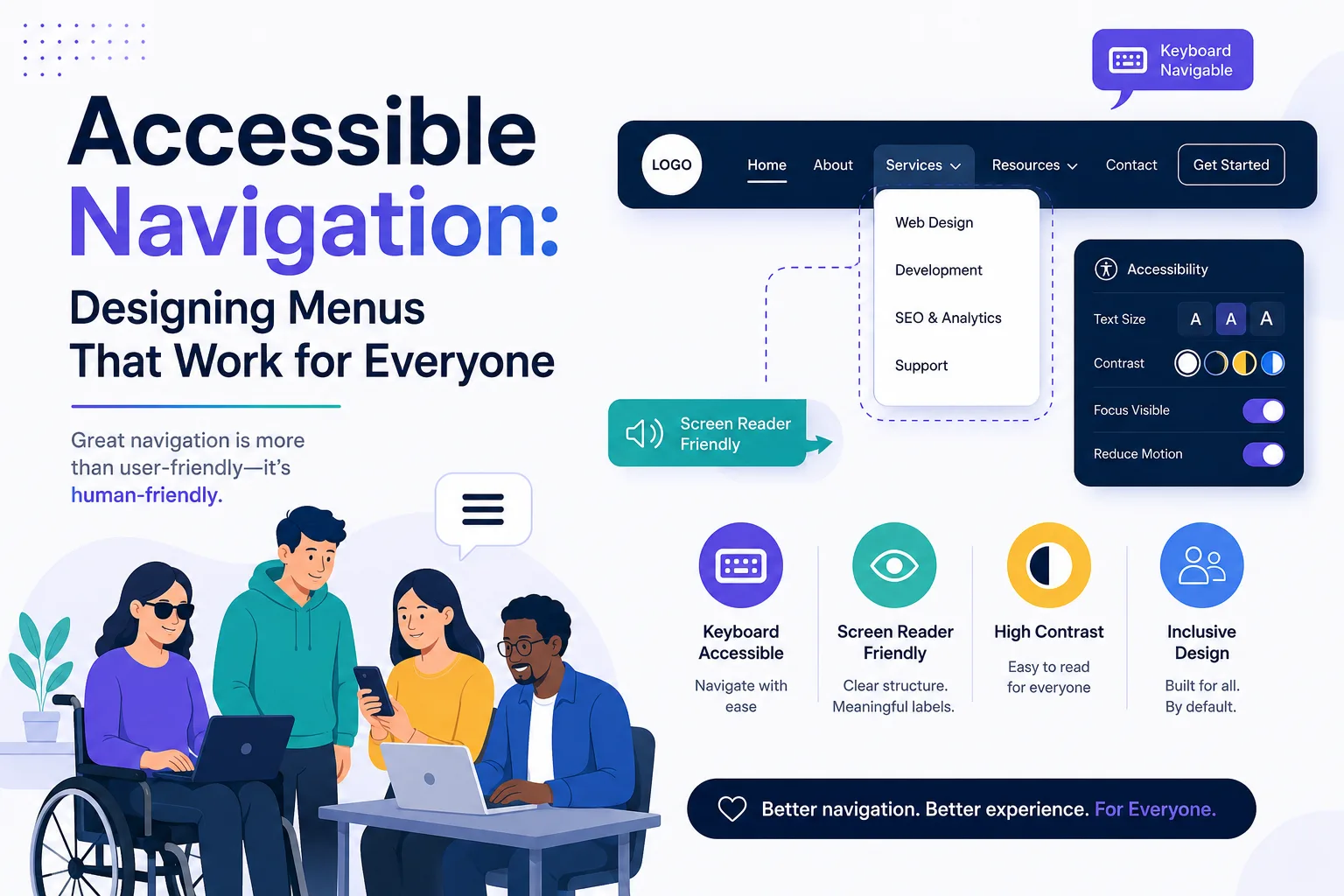
Accessible Navigation: Designing Menus That Work for Everyone
Published on: 13 Jun 2026
Accessible Navigation: Designing Menus That Work for Everyone
Introduction
Navigation menus are the backbone of any website. They help users find what they need quickly and intuitively. But for millions of people with disabilities, poorly designed navigation can be a frustrating barrier. In fact, studies show that over 70% of website accessibility issues are related to navigation and links. That's a huge missed opportunity for businesses in India and globally.
Learn more about our Website services
At EishwarITSolution, we believe that accessible design isn't just about compliance – it's about creating better experiences for all users. Whether you're a business owner, marketer, or professional, this guide will help you design navigation menus that are truly inclusive.
Let's dive into the practical steps, expert tips, and future trends that will make your website stand out.
Main Section 1: Understanding the Basics of Accessible Navigation
Accessible navigation means that everyone, including people with visual, motor, or cognitive disabilities, can easily use your site's menu. This involves multiple layers of design, from visual clarity to keyboard and screen reader compatibility. When you design with accessibility in mind, you're not just checking a box—you're building a foundation that benefits all users, including those on mobile devices or with temporary impairments like a broken arm.
Why Accessibility Matters for Navigation
- Legal compliance: In India, the Rights of Persons with Disabilities Act (2016) and global standards like WCAG 2.1 require accessible websites. Non-compliance can lead to lawsuits and fines, as seen in recent cases globally.
- Business growth: Over 1 billion people worldwide have some form of disability. An accessible navigation opens your business to a wider audience, including the growing elderly population who may have age-related vision or motor issues.
- Better UX for everyone: Clear, well-structured menus benefit all users, including those on mobile devices or with slow internet. For example, a well-labeled menu helps users find products faster, reducing bounce rates.
Key Principles from WCAG
The Web Content Accessibility Guidelines (WCAG) outline four principles: Perceivable, Operable, Understandable, and Robust (POUR). For navigation, focus on:
- Operable: All menu items must be accessible via keyboard alone. This means no mouse-dependent interactions like hover-only dropdowns.
- Perceivable: Users must be able to perceive menu items – use proper contrast (at least 4.5:1 for normal text), text size (minimum 16px for body text), and labels. For instance, avoid using only color to indicate active menu items.
- Understandable: Menus should have consistent behavior and clear labels. If a menu item says 'Products,' it should lead to a product page, not a confusing redirect.
- Robust: Ensure compatibility with assistive technologies like screen readers. This means using valid HTML and ARIA attributes only when necessary.
Example: A Simple Accessible Menu Structure
Imagine a main menu with items like 'Home', 'Services', 'About Us', and 'Contact'. An accessible version would:
- Use semantic HTML (
<nav>and<ul>). - Include descriptive link text (e.g., 'Our Services' not 'Click Here').
- Support keyboard navigation (Tab and Enter keys).
- Provide visual focus indicators (e.g., a visible outline when tabbing).
For example, a real-world implementation could look like this: a travel agency website with a menu that says 'Book Flights' instead of 'Services,' making it immediately clear to screen reader users what the link does.
👉 Don't wait for the perfect moment; turn your vision into reality today.
Free ConsultationMain Section 2: Practical Steps to Design Accessible Navigation Menus
Now let's get hands-on. Follow these actionable steps to make your navigation menus accessible. Each step includes a practical tip you can implement today.
1. Use Semantic HTML
Always wrap your navigation in a <nav> element. Inside, use an unordered list <ul> with list items <li>. This tells screen readers that this is a navigation block. Additionally, add an aria-label to distinguish multiple navigation regions, like 'Main navigation' vs. 'Footer navigation.'
Example:
<nav aria-label='Main navigation'>
  <ul>
    <li><a href='/'>Home</a></li>
    <li><a href='/services'>Services</a></li>
    <li><a href='/about'>About Us</a></li>
    <li><a href='/contact'>Contact</a></li>
  </ul>
</nav>
Practical tip: Avoid using <div> or <span> for navigation, as they lack semantic meaning. Always test with a screen reader to ensure the navigation is announced correctly.
2. Ensure Keyboard Accessibility
All menu items should be reachable and operable using only the keyboard. Test by tabbing through your site. Ensure:
- Links and buttons receive focus in a logical order (top to bottom, left to right).
- Dropdown menus open and close with keyboard (e.g., Enter or Space to toggle, and Escape to close).
- Escape key closes dropdowns and returns focus to the parent menu item.
Practical tip: For dropdown menus, use the aria-expanded attribute to indicate whether the dropdown is open or closed. For example, <button aria-expanded='false'>Services</button>.
3. Provide Clear Focus Indicators
When a user tabs to a menu item, there should be a visible outline or highlight. Don't remove :focus styles without providing an alternative. Use a 3:1 contrast ratio against the background. A common mistake is using outline: none without a replacement, which makes navigation impossible for keyboard users.
Practical tip: Design a custom focus style that matches your brand, such as a thick border or background color change. For example, a:focus { outline: 2px solid #005fcc; outline-offset: 2px; }.
4. Use Descriptive Link Text
Link text should describe the destination. Avoid generic terms like 'Click Here' or 'Read More'. For example, instead of 'Services', use 'Our Web Development Services'. This helps screen reader users understand the context without needing to read surrounding text.
Practical tip: If you must use 'Read More,' add an aria-label to provide context, like <a href='/blog/post1' aria-label='Read more about accessible navigation'>Read More</a>.
5. Design for Mobile and Touch
On mobile devices, navigation often becomes a hamburger menu. Ensure:
- The menu button has an accessible label (e.g.,
aria-label='Open menu'). - Touch targets are at least 44x44 pixels, as recommended by WCAG.
- The menu can be closed with a button or by tapping outside.
Practical tip: Use a <button> element for the hamburger icon, not a <div>, to ensure it's focusable and operable by keyboard. Also, announce the state of the menu using aria-expanded.
👉 Free Website Audit
Get Free AuditMain Section 3: Testing Your Navigation for Accessibility
Testing is crucial. Here are simple methods to check your navigation. Remember, automated tools catch only about 30% of issues, so manual testing is essential.
Manual Testing
- Keyboard only: Try navigating your entire site using only Tab, Shift+Tab, and Enter. Can you reach every menu item? Are dropdowns usable? For example, if a dropdown only opens on hover, it's inaccessible.
- Screen reader test: Use free tools like NVDA (Windows) or VoiceOver (Mac). Listen to how the menu is announced. Is it clear? For instance, does it say 'Navigation, list, 4 items'?
- Zoom test: Zoom your browser to 200% and check if menu items remain visible and usable. Text should not overlap or be cut off.
Automated Tools
Use tools like WAVE, axe DevTools, or Lighthouse to scan for common issues. These tools can detect missing labels, low contrast, and improper ARIA usage. However, they can't test for logical flow or user experience.
Practical tip: Run automated tests as part of your development workflow, but always follow up with manual testing. For example, use axe in your browser's developer tools to catch issues early.
Real User Testing
If possible, invite people with disabilities to test your navigation. Their feedback is invaluable. You can also use platforms like UserTesting or Fable to recruit testers with specific disabilities. For instance, a blind user might reveal that your dropdown menu is confusing because it doesn't announce sub-items.
Expert Tips
- Skip to content: Add a 'Skip to Main Content' link at the top of the page. This allows keyboard users to bypass repeated navigation. Make sure it's visible on focus, not hidden until hover.
- Breadcrumb navigation: Provide breadcrumbs for complex sites. They help users understand their location and navigate back easily. Use
<nav aria-label='Breadcrumb'>witharia-current='page'on the current page. - Use ARIA sparingly: ARIA can enhance accessibility, but misuse can cause confusion. Stick to native HTML elements when possible. For example, use
<nav>instead of<div role='navigation'>. - Consistency is key: Keep navigation structure and behavior consistent across all pages. If your menu is on the left on one page and on the right on another, users will be disoriented.
- Test with real assistive tech: Don't rely only on browser extensions. Use actual screen readers and keyboard navigation. For example, test with a switch device if possible.
Common Mistakes
- Removing focus indicators: Many designers remove the default outline for aesthetic reasons. Always provide a visible alternative, like a colored border or background change.
- Using generic link text: 'Click Here' doesn't tell screen reader users where they're going. Use descriptive text like 'View our pricing plans.'
- Complex dropdowns without keyboard support: Dropdowns that only work on hover are inaccessible to keyboard users. Ensure they can be opened with Enter or Space and closed with Escape.
- Missing labels on hamburger menus: Without an accessible label, screen readers may announce 'button' with no context. Use
aria-label='Open navigation menu'. - Poor contrast: Light gray text on white background is hard to read for many users, especially those with low vision. Use a contrast ratio of at least 4.5:1 for normal text.
Future Trends
The world of accessible navigation is evolving. Here's what to watch for:
👉 Free Homepage Demo
Book Demo- Voice-controlled navigation: With the rise of voice assistants, expect more sites to support voice commands for navigation. For example, users might say 'Go to Services' to navigate.
- AI-powered personalization: AI could adapt navigation based on user preferences or disabilities, offering a custom menu layout. For instance, a user with motor disabilities might see larger touch targets.
- Gesture-based navigation: For touchscreens, gestures like swipe may become more common, but must be designed accessibly. Provide alternatives for users who can't perform gestures.
- Increased regulation: India and other countries are tightening accessibility laws. Staying ahead will be a competitive advantage. For example, the European Accessibility Act will require many websites to be accessible by 2025.
FAQs
1. What is accessible navigation?
Accessible navigation means that all users, including those with disabilities, can easily use your website's menu. This includes keyboard compatibility, screen reader support, and clear visual design. It ensures that users with visual, motor, or cognitive impairments can navigate your site without barriers.
2. How do I make my navigation keyboard accessible?
Ensure all menu items can be reached by pressing Tab, and activated with Enter or Space. Provide visible focus indicators and ensure dropdowns open/close with keyboard commands. Test by navigating your site without a mouse.
3. What is WCAG and how does it relate to navigation?
WCAG (Web Content Accessibility Guidelines) is a set of international standards for web accessibility. For navigation, it requires that menus be operable, perceivable, understandable, and robust. Following WCAG helps you meet legal requirements and improve user experience.
4. Do I need to add ARIA roles to my navigation?
Not always. Use semantic HTML (<nav>, <ul>) first. ARIA roles like role='navigation' are redundant if you use <nav>. Use ARIA only when HTML alone isn't enough, such as for complex widgets like tree menus.
5. How do I test if my navigation is accessible?
Test manually with keyboard and screen readers, use automated tools like WAVE or axe, and get feedback from real users with disabilities. Combine these methods for comprehensive testing.
6. What are the consequences of inaccessible navigation?
You risk legal action, lose customers, and harm your brand reputation. Inaccessible sites also have lower SEO rankings and higher bounce rates. For example, a user who can't navigate your site will leave, increasing your bounce rate.
7. Can accessible navigation improve SEO?
Yes! Clear, semantic HTML and descriptive link text help search engines understand your site structure, which can boost rankings. For instance, using <nav> and descriptive links helps Google index your pages more effectively.
Conclusion
Designing accessible navigation menus isn't just a nice-to-have – it's a must for any business that wants to reach all users and stay compliant. By following the principles and steps outlined in this guide, you can create menus that are easy to use for everyone, including people with disabilities.
Remember, accessibility is an ongoing journey. Start with small changes, test regularly, and keep learning. Your users – and your business – will thank you.
CTA
Ready to make your website truly inclusive? Contact EishwarITSolution today for a free accessibility consultation. Let's build a web that works for everyone.