Accessible Video Content: Captions, Transcripts, and Audio Description
Published on: 22 Jun 2026
Accessible Video Content: Captions, Transcripts, and Audio Descriptions for Inclusive Media
Introduction
Video is dominating the web. From product demos to brand stories, businesses rely on video to connect with audiences. But what if a significant portion of your audience can't fully experience your video? That's where accessibility comes in. Making your video content accessible isn't just a nice-to-have—it's a business imperative. In India, where digital consumption is skyrocketing, ensuring your videos are inclusive can set you apart from competitors.
Learn more about our Website services
In this guide, we'll explore the three pillars of accessible video content: captions, transcripts, and audio descriptions. You'll learn practical steps to implement them, avoid common pitfalls, and future-proof your content strategy. Let's dive in.
Main Section 1: Why Accessible Video Content Matters
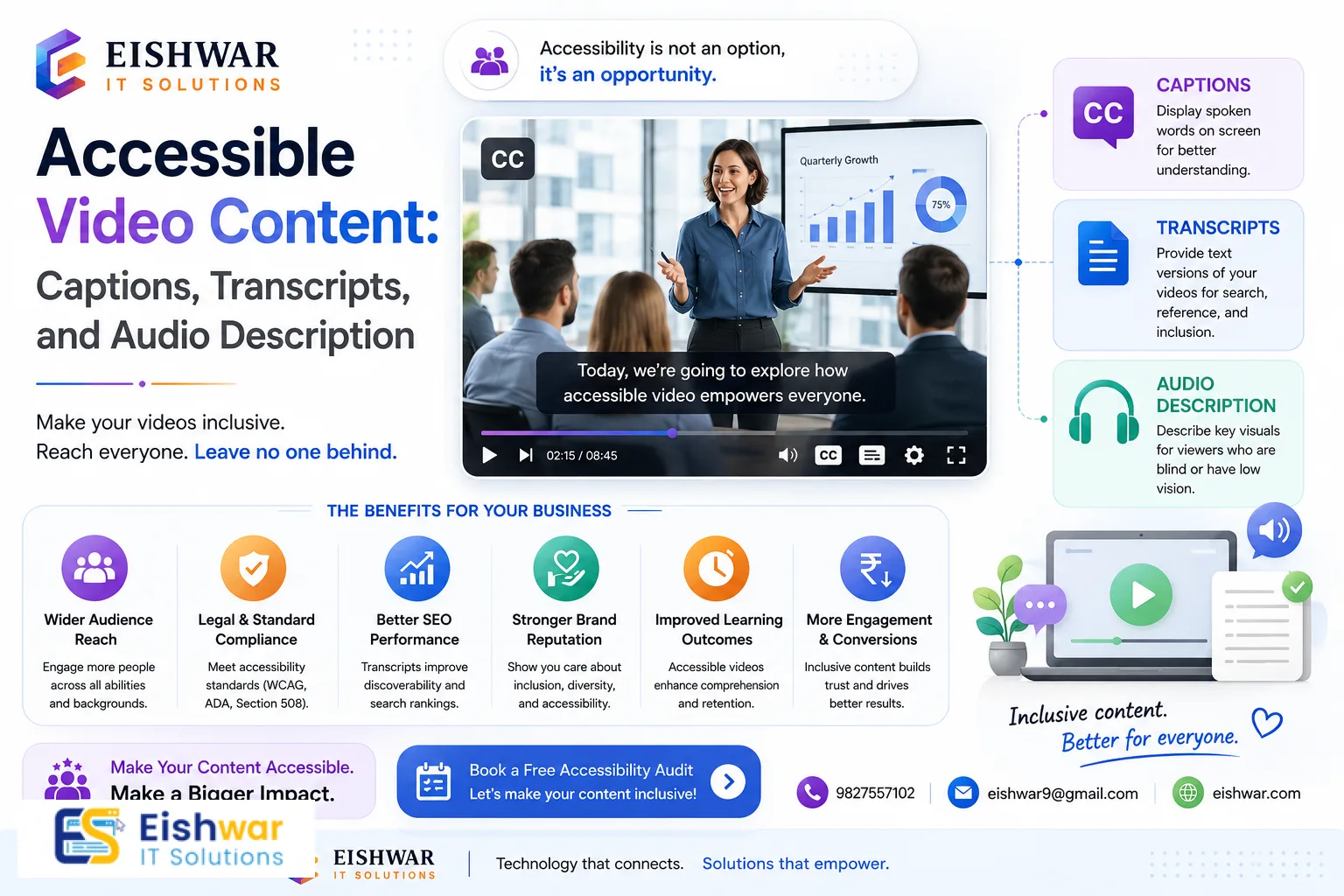
Accessibility is about reaching everyone. Over 1 billion people worldwide have some form of disability. In India, the Rights of Persons with Disabilities Act, 2016 mandates equal access to information. But beyond compliance, accessible video content offers tangible benefits:
- Improved User Experience: Captions help viewers in noisy environments or those who prefer reading. Transcripts allow quick scanning. Audio descriptions provide context for visually impaired users.
- SEO Boost: Search engines can't watch videos, but they can read text. Captions and transcripts provide rich keyword content, improving your video's discoverability.
- Higher Engagement: Accessible videos keep viewers longer. Studies show captions increase watch time by up to 40%.
- Brand Reputation: Demonstrating inclusivity builds trust and loyalty among diverse audiences.
For business owners in India, this is a competitive edge. Imagine a potential customer with hearing impairment landing on your site. If your product video has no captions, they'll leave. With captions, they stay, engage, and convert. For example, a local e-commerce site that added Hindi captions to its tutorial videos saw a 25% increase in conversions from tier-2 cities. Accessibility isn't just ethical—it's profitable.
Main Section 2: The Three Pillars of Accessible Video
Captions
Captions are text versions of the audio, synchronized with the video. They include not only dialogue but also sound effects, music cues, and speaker identification. There are two types:
- Closed Captions: Can be toggled on/off by the user. Common formats include SRT, VTT, and SCC.
- Open Captions: Permanently burned into the video. Useful for social media where captions may not be supported.
Best Practices:
- Use accurate, verbatim captions. Don't paraphrase. For instance, if a speaker says "um" or stutters, include it for authenticity.
- Keep captions on screen long enough to read (typically 2-3 seconds per line). A good rule: 32 characters per line max.
- Position captions so they don't obscure important visuals. Place them at the bottom center, but avoid covering faces or key graphics.
- Include speaker labels for multiple speakers, like "[Speaker 1]" or "[Narrator]".
How to Add Captions:
- YouTube: Automatic captions are a start, but always review and edit for accuracy. Use the "Edit" feature to fix misheard words, especially for technical terms.
- Vimeo: Upload SRT files or use their transcription service. Vimeo's AI captions are decent but still need human review.
- Custom players: Use JavaScript libraries like Able Player or Plyr that support captions. For example, Able Player is open-source and WCAG-compliant.
Practical Tip: Test captions by watching the video with sound off. If you can understand the story, they're effective.
👉 Don't wait for the perfect moment; turn your vision into reality today.
Free ConsultationTranscripts
A transcript is a text version of the entire video content, including dialogue and descriptions of visual elements. They are separate from the video and can be placed on the same page or linked.
Benefits:
- Search engines index transcript text, boosting SEO. For example, a transcript with keywords like "how to bake a cake" can rank for long-tail queries.
- Users can scan for specific information without watching the entire video. This is especially useful for how-to videos.
- Helps users with cognitive disabilities or those who prefer reading. Some people absorb information better through text.
How to Create Transcripts:
- Use automatic transcription tools (e.g., Otter.ai, Rev.com) and then edit for accuracy. Otter.ai is free for up to 300 minutes per month.
- Structure the transcript with timestamps for easy navigation. For example, "[00:02:15] Introduction to ingredients."
- Include descriptions of key visuals (e.g., 'Chart showing revenue growth'). This helps users who can't see the screen.
Practical Tip: Place the transcript directly below the video, not hidden in a separate page. This improves user experience and SEO.
Audio Descriptions
Audio descriptions are narrated explanations of visual elements that are not conveyed through dialogue alone. They describe actions, scenes, facial expressions, and on-screen text.
Types:
- Standard Audio Descriptions: Inserted during natural pauses in the audio track. For example, "He picks up the phone and dials."
- Extended Audio Descriptions: Used when there isn't enough time for descriptions; the video is paused to allow description. This is common in complex scenes.
Best Practices:
- Be objective and concise. Describe only what is visually important. Avoid subjective language like "beautiful sunset." Instead, say "The sun sets behind the mountains, casting orange light."
- Use neutral tone. Avoid interpreting emotions unless obvious. For example, "She smiles" is better than "She looks happy."
- For complex visuals, consider a separate audio track with extended descriptions. This is common in movies and educational content.
Tools:
- YouDescribe: Free tool for adding audio descriptions to YouTube videos. It's simple but limited to YouTube.
- Adobe Premiere Pro: Allows creating separate audio tracks for descriptions. You can export as a separate audio file.
Practical Tip: Test audio descriptions by listening with eyes closed. If you can visualize the scene, they're effective.
Main Section 3: Implementing Accessibility in Your Video Workflow
Integrating accessibility early in your video production process saves time and cost. Here's a step-by-step approach:
- Plan for Accessibility: During scripting, note visual elements that will need descriptions. Leave pauses for audio descriptions. For example, if a character points to a chart, script a 3-second pause.
- Record Clean Audio: High-quality audio makes automatic captioning more accurate and easier to transcribe. Use a good microphone and reduce background noise.
- Edit with Accessibility in Mind: Use clear, readable fonts for any on-screen text. Ensure high contrast between text and background. Avoid thin fonts or low contrast colors like yellow on white.
- Generate Captions and Transcripts: Use automated tools, but always manually review for errors. For critical content, consider professional services. Rev.com charges $1.50 per minute for captions.
- Add Audio Descriptions: For videos with important visual information, create a separate audio description track or incorporate descriptions into the main audio if possible. For example, a narrator can describe visuals naturally.
- Test with Users: Involve people with disabilities in your testing. Their feedback is invaluable. Reach out to local disability organizations in India like the National Association for the Blind.
- Publish Accessibly: On your website, ensure video players support captions and transcripts. Provide clear links to transcripts. Use ARIA labels for video controls. For example, add
aria-label="Play video"to the play button.
For Indian businesses, consider regional languages. Offering captions in Hindi, Tamil, or other local languages can dramatically expand your reach. A study by KPMG found that 60% of Indian internet users prefer content in their local language.
👉 Free Website Audit
Get Free AuditExpert Tips
- Use Semantic HTML: When embedding video, use the
<video>element with<track>for captions. This ensures screen readers can access the content. Example:<video><track src="captions.vtt" kind="captions" srclang="en" label="English"></video>. - Provide Multiple Formats: Offer captions in SRT and VTT. Some players prefer one over the other. VTT is more modern and supports styling.
- Keep Transcripts Updated: If you edit your video, update the transcript accordingly. Outdated transcripts confuse users.
- Consider Sign Language: For high-impact content, consider adding a sign language interpreter overlay. This is especially important for government or public service announcements.
- Leverage AI Tools: Tools like Descript and Kapwing can streamline captioning and transcription. But always human-review. Descript's AI is good for basic editing but misses nuances.
Common Mistakes
- Automatic Captions Without Review: Auto-generated captions often contain errors, especially with accents or technical terms. Always proofread. For example, "AI" might be transcribed as "aye."
- Ignoring Audio Descriptions: Many businesses focus only on captions. But for blind users, audio descriptions are essential. A video without them is like a silent movie.
- Poor Synchronization: Captions that appear too early or late confuse viewers. Use editing tools to sync properly. Most tools allow you to adjust timing frame by frame.
- Burying Transcripts: Don't hide transcripts in a tiny link. Place them prominently near the video. For example, add a "View Transcript" button below the video.
- Inaccessible Video Players: If your video player can't be navigated by keyboard or screen reader, all your efforts are wasted. Test with a screen reader like NVDA.
Future Trends
The landscape of video accessibility is evolving rapidly. Here's what's coming:
- AI-Powered Real-Time Captioning: Live streams and webinars will have near-perfect automatic captions. Tools like Otter.ai Live are already making this possible.
- Personalized Accessibility: Users will be able to customize caption size, color, and background for better readability. This is already supported in some players like YouTube.
- Voice-Controlled Video Players: Integration with voice assistants will allow hands-free control. For example, users can say "Skip to 5 minutes" without touching the screen.
- 3D and VR Accessibility: As immersive media grows, audio descriptions for spatial environments will become standard. Companies like Meta are developing guidelines for VR accessibility.
- Regulatory Push: India's accessibility laws are likely to tighten, making video accessibility mandatory for many businesses. The upcoming Digital India Act may include specific video accessibility requirements.
Staying ahead of these trends will position your brand as an inclusive leader. For example, a tech startup that adopted AI captioning early saw a 30% increase in user retention.
👉 Free Homepage Demo
Book DemoFAQs
- What is the difference between captions and subtitles? Captions include dialogue and non-speech audio (like sound effects), while subtitles only translate dialogue. Captions are for accessibility; subtitles are for language translation.
- Do I need audio descriptions for all videos? Not necessarily. If the video has minimal visual information (e.g., a podcast with a static image), audio descriptions may not be needed. But for instructional or narrative videos, they are crucial.
- How long should a transcript be? A transcript should capture the entire video content. Typically, a 10-minute video yields a transcript of around 1500-2000 words. But it can vary based on speech speed.
- Can I use free tools for captions? Yes, tools like YouTube's auto-captioning and Otter.ai are free but require editing. For professional quality, paid services like Rev.com start at $1.50 per minute.
- How do I make my video player accessible? Use players that support keyboard navigation, screen reader announcements, and captions. Examples: Able Player, MediaElement.js, Plyr.
- What are the legal requirements in India? The Rights of Persons with Disabilities Act, 2016 requires public websites to be accessible. While video-specific guidelines are not detailed, following WCAG 2.1 ensures compliance.
- How can I test my video accessibility? Use tools like WAVE or axe for automated checks, but also conduct manual testing with screen readers and keyboard navigation. Involve users with disabilities for real-world feedback.
Conclusion
Accessible video content is not just about compliance—it's about creating a better experience for everyone. By adding captions, transcripts, and audio descriptions, you open your brand to a wider audience, improve SEO, and demonstrate genuine care for inclusivity. Start small: pick one video, add captions, and see the difference. Then expand your efforts. The future of media is inclusive, and your business can lead the way.
CTA
Ready to make your video content accessible? Contact EishwarITSolution for a free accessibility audit of your website and media. Let's build an inclusive digital presence together. Visit eishwar.com or call us to get started.