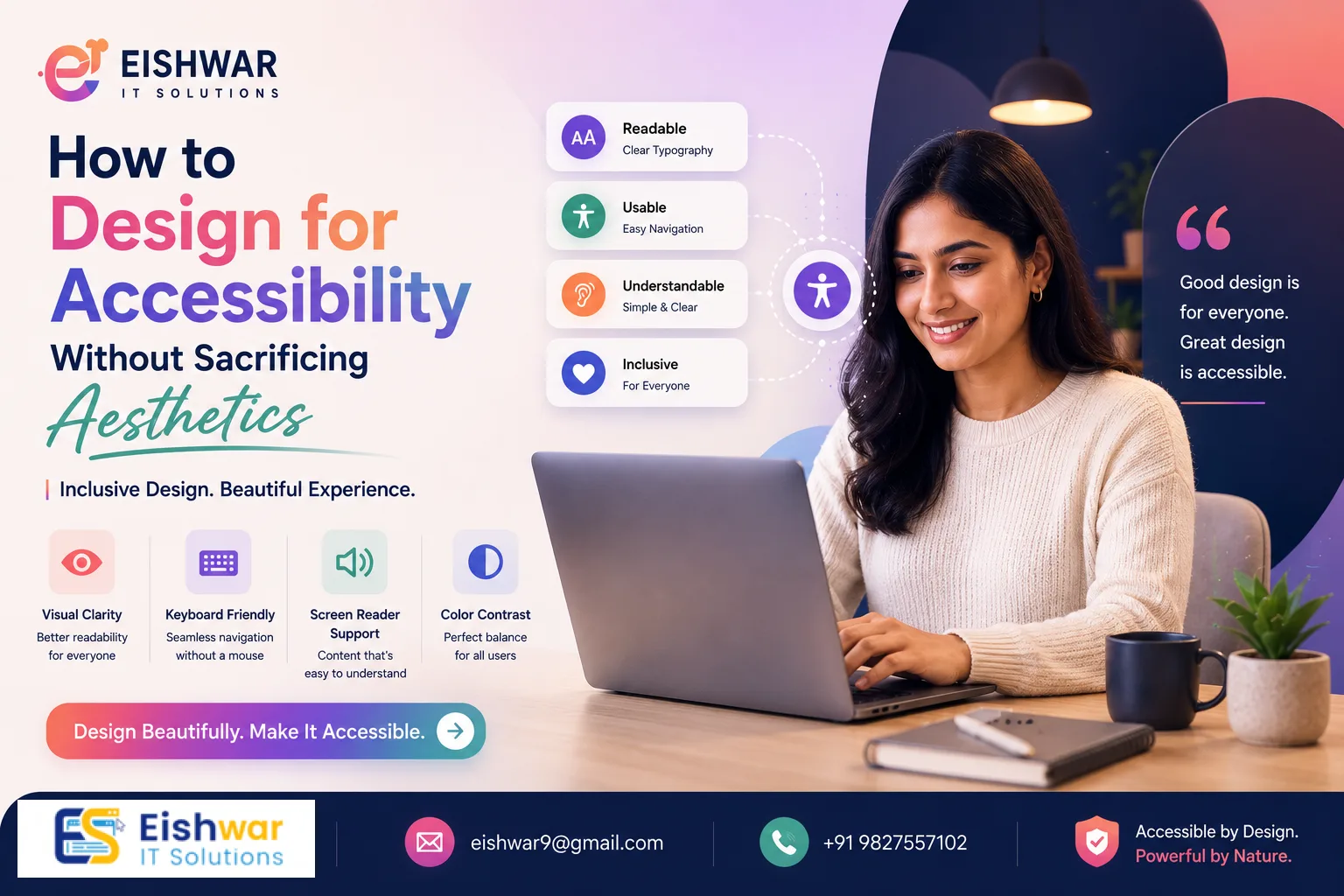
How to Design for Accessibility Without Sacrificing Aesthetics
Published on: 11 Jun 2026
How to Design for Accessibility Without Sacrificing Aesthetics
\nIntroduction
In today's digital-first world, your website is often the first impression potential clients have of your business. But what if that first impression excludes millions of users? Web accessibility isn't just a legal requirement—it's a smart business move. According to the World Health Organization, over 1 billion people globally live with some form of disability. In India, the Rights of Persons with Disabilities Act, 2016 mandates equal access to digital spaces. However, many business owners worry that making their site accessible will make it look boring or clunky. The good news? You can design for accessibility without sacrificing aesthetics. This guide shows you how, with practical examples and actionable tips that balance inclusivity with visual appeal.
Learn more about our Website services
Main Section 1: Understanding Web Accessibility and Why It Matters
Web accessibility means designing and coding your site so that people with disabilities—visual, auditory, motor, or cognitive—can perceive, understand, navigate, and interact with it. Think of it as universal design: creating a space that works for everyone, regardless of ability. For instance, a user with low vision might rely on a screen reader to interpret your content, while someone with a motor impairment might navigate using only a keyboard. Accessibility ensures these users have a seamless experience, just like anyone else.
Why does this matter for your business? First, it expands your audience. An accessible site welcomes users who might otherwise bounce, tapping into a market of over 1 billion people globally. In India alone, the census data suggests that around 2.68 crore individuals have some form of disability—a significant customer base you can't afford to ignore. Second, it improves SEO. Many accessibility practices—like alt text, proper heading structure, and semantic HTML—also help search engines understand your content, boosting your rankings. For example, using descriptive alt text like 'vibrant red rose in a garden' instead of 'image123.jpg' helps both screen readers and Google Images index your site better. Third, it reduces legal risk. Accessibility lawsuits are on the rise globally, and Indian courts are increasingly referencing WCAG (Web Content Accessibility Guidelines) standards. In 2021, the Delhi High Court directed all government websites to be accessible, setting a precedent for private businesses.
But here's the key: accessibility doesn't mean ugly. Some of the most beautiful websites in the world are also highly accessible. Think of Apple's clean, high-contrast design with its minimalist typography and generous white space, or the BBC's colour-coded navigation that uses distinct hues for different sections while maintaining strong contrast ratios. They prove that inclusivity and elegance go hand in hand. For example, Apple's use of a 7:1 contrast ratio on its product pages meets WCAG AAA standards, yet the design remains sleek and modern. Similarly, the BBC's website uses a consistent colour palette—blue for news, red for sport—that is both visually appealing and easy to distinguish for colourblind users. These examples show that accessibility is not a constraint but an opportunity to innovate.
Main Section 2: Practical Strategies to Merge Accessibility and Aesthetics
1. Colour and Contrast: The Right Balance
High contrast is essential for users with low vision, but that doesn't mean you're stuck with black on white. Use a colour palette that meets WCAG AA standards (a contrast ratio of at least 4.5:1 for normal text and 3:1 for large text). Tools like WebAIM's Contrast Checker or Stark for Figma help you find stylish combinations. For example, a deep navy blue (#00264D) on a soft cream background (#FFF8E7) looks sophisticated and passes contrast tests with a ratio of 7.2:1. Another example is a warm terracotta (#C85A17) on a light beige (#F5F0E1), which gives a 5.1:1 ratio—ideal for headings. Avoid relying solely on colour to convey information—add icons or text labels for colourblind users. For instance, instead of using red and green to indicate 'error' and 'success', use a red exclamation mark icon and a green checkmark icon. This ensures that users with red-green colour blindness (affecting about 8% of men) can still understand the status.
👉 Don't wait for the perfect moment; turn your vision into reality today.
Free Consultation2. Typography That's Both Readable and Beautiful
Choose fonts that are legible at various sizes. Sans-serif fonts like Inter, Lato, or Open Sans work well because they have clean lines and are easy to read on screens. Use a minimum font size of 16px for body text—this is a baseline recommended by WCAG for comfortable reading. But you can still use decorative fonts for headings—just ensure they're large enough (at least 24px for H2) and have good contrast. For example, pairing a bold serif font like Playfair Display for headings with a clean sans-serif like Source Sans Pro for body text creates a visually striking yet accessible design. Line spacing (1.5x) and paragraph spacing (at least 1.5em) improve readability without ruining your design. A practical tip: use a line height of 1.6 for body text to prevent lines from blending together, especially for users with dyslexia. Also, avoid using all caps for long passages—it reduces readability by making text harder to scan.
3. Navigation That's Intuitive and Inclusive
Clear navigation helps everyone. Use descriptive link text (avoid 'click here'—instead, use 'Read our accessibility guide' or 'Shop for eco-friendly products'). Highlight the current page with a bold or underlined style, and ensure your menu works with keyboard-only navigation. For example, a user should be able to press the Tab key to move through menu items, and each item should have a visible focus indicator (like a blue outline). Dropdown menus can be tricky—make sure they don't disappear too quickly. A common issue is that submenus vanish when the user moves the mouse slightly off the parent item, which frustrates users with motor disabilities. To fix this, add a 300ms delay before hiding the dropdown, or use a 'hover and click' pattern that keeps the menu open until the user clicks elsewhere. A simple, well-structured nav bar can look modern and be fully accessible. For instance, consider a horizontal navigation bar with clear labels, a search icon, and a hamburger menu for mobile—all styled with ample padding and high contrast.
👉 Free Website Audit
Get Free Audit4. Images and Alt Text: Tell a Story
Images add visual appeal, but they need alt text for screen readers. Write descriptive alt text that conveys the image's purpose—not just 'photo of a laptop', but 'businesswoman using a laptop in a modern office with natural light'. This helps users understand the context. For decorative images, use empty alt attributes (alt='') so screen readers skip them—this prevents unnecessary clutter. For example, a background image of a city skyline that adds visual interest but no information should have alt=''. On the other hand, an infographic about website statistics should have detailed alt text summarising the key data points. This keeps your design rich while being inclusive. A practical tip: if an image contains text (like a quote or a chart), include that text in the alt attribute or provide it as separate HTML content. Avoid using images of text whenever possible—use actual text with CSS styling instead.
5. Forms and Interactive Elements
Forms should have clear labels, error messages with suggestions, and logical tab order. Use ARIA (Accessible Rich Internet Applications) attributes when needed, but don't overdo it—overusing ARIA can confuse screen readers. For example, use aria-required='true' on mandatory fields and aria-describedby to link error messages to the input. A well-designed form with proper spacing, colour contrast, and helpful hints looks professional and works for everyone. For instance, a sign-up form with a light grey background, dark text labels, and a green 'Submit' button with a 4.5:1 contrast ratio is both clean and accessible. Include inline validation that provides real-time feedback, like 'Password must be at least 8 characters' in a small, high-contrast text below the field. Also, ensure that the tab order follows the visual order—users should be able to tab from name to email to password without jumping around.
Main Section 3: Tools and Testing for Accessible Design
Testing is crucial. Use automated tools like WAVE or Axe to catch common issues, such as missing alt text or low contrast. For example, WAVE's browser extension highlights errors directly on your page, making it easy to spot problems. But don't stop there—manual testing with a screen reader (like NVDA on Windows or VoiceOver on Mac) gives you real insight into how users experience your site. Test keyboard-only navigation—can users tab through your entire site without a mouse? Check that all interactive elements (links, buttons, forms) are reachable and that focus indicators are visible. Also, test zoom levels up to 200%—your design should still look good without horizontal scrolling. For instance, ensure that text doesn't overflow its container and that images scale proportionally. Consider involving users with disabilities in your testing process—their feedback is invaluable. At EishwarITSolution, we recommend a phased approach: start with the most visited pages (like the homepage and contact form), fix critical issues (like missing alt text or broken keyboard navigation), then iterate on less critical pages. Use a checklist based on WCAG 2.1 Level AA to track progress.
Expert Tips
- Start with a design system: Build accessibility into your design tokens—colours, fonts, spacing—so every new page is automatically accessible. For example, define a primary colour with a contrast ratio of at least 4.5:1 against white, and use it consistently across buttons and links.
- Use semantic HTML: Proper heading hierarchy (H1, H2, H3) and landmark elements (nav, main, footer) help both screen readers and SEO. For instance, use
<nav>for navigation menus and<main>for primary content, so users can skip to relevant sections. - Don't forget focus indicators: Visible focus rings (like a blue outline) help keyboard users navigate. Make them stylish—use a dashed line or a subtle glow that matches your brand colours. For example, a 2px solid blue outline with a 2px offset is both visible and modern.
- Write inclusive copy: Use plain language, avoid jargon, and provide alt text for infographics. This benefits everyone, including users with cognitive disabilities and non-native speakers. For instance, instead of 'Leverage synergies', say 'Work together effectively'.
- Test early and often: Accessibility is not a one-time fix. Integrate checks into your design and development workflow using tools like Lighthouse in Chrome DevTools or automated CI/CD pipelines. For example, run an Axe scan on every pull request to catch issues before they go live.
Common Mistakes
- Relying only on colour: Never use colour alone to indicate status (e.g., red for error, green for success). Add icons or text labels. For example, use a red exclamation mark with 'Error' text and a green checkmark with 'Success' text.
- Using auto-play video or audio: It's distracting and can be disorienting for users with cognitive disabilities. Always give users control—provide a play/pause button and ensure the content doesn't start automatically. If auto-play is necessary, include a visible 'Stop' button.
- Hiding content for 'clean' design: Content hidden behind hover interactions may not be accessible via keyboard. Use proper ARIA expand/collapse patterns, like
aria-expandedon buttons that control hidden panels. For example, a tooltip that appears on hover should also appear on focus. - Ignoring mobile accessibility: Many accessibility issues are magnified on small screens. Test on real devices, not just emulators. For instance, ensure that touch targets are at least 44x44 pixels (as recommended by WCAG) and that text doesn't require horizontal zooming.
- Assuming accessibility is only for blind users: It covers hearing, motor, cognitive, and speech disabilities too. For example, provide captions for videos (for deaf users), ensure keyboard navigation (for motor-impaired users), and use clear language (for users with cognitive disabilities).
Future Trends
Accessibility is becoming a core part of UX design, not an afterthought. Expect more AI-powered tools that automatically generate alt text and captions—for example, Microsoft's Azure Cognitive Services can now describe images with high accuracy. Voice user interfaces will grow, making navigation even easier for users with motor disabilities—think of voice-activated menus or form filling. Personalization—like allowing users to adjust contrast or font size on the fly—will become standard. For instance, websites like GOV.UK already offer a 'high contrast' mode that users can toggle. In India, the government's push for digital inclusion (like the Accessible India Campaign) means businesses that prioritize accessibility will have a competitive edge. Additionally, the rise of Web 3.0 and immersive technologies (like AR/VR) will require new accessibility standards, such as haptic feedback for users with visual impairments. Companies that invest in accessibility now will be better prepared for these future shifts.
👉 Free Homepage Demo
Book DemoFAQs
1. Does web accessibility affect SEO?
2. What is WCAG and do I need to comply?
3. Can I make my existing website accessible without a redesign?
4. How much does it cost to make a website accessible?
5. What are some quick wins for accessibility?
6. Are there any Indian laws about web accessibility?
Conclusion
Designing for accessibility doesn't mean compromising on beauty. By integrating inclusive practices from the start, you can create a website that is both stunning and welcoming to all users. It's not just about compliance—it's about respect, reach, and building a brand that truly serves its audience. At EishwarITSolution, we believe that great design is for everyone. Start your accessibility journey today, and watch your business grow.
CTA
Ready to make your website accessible and beautiful? Contact EishwarITSolution for a free accessibility audit and design consultation. Let's build a web that works for everyone.