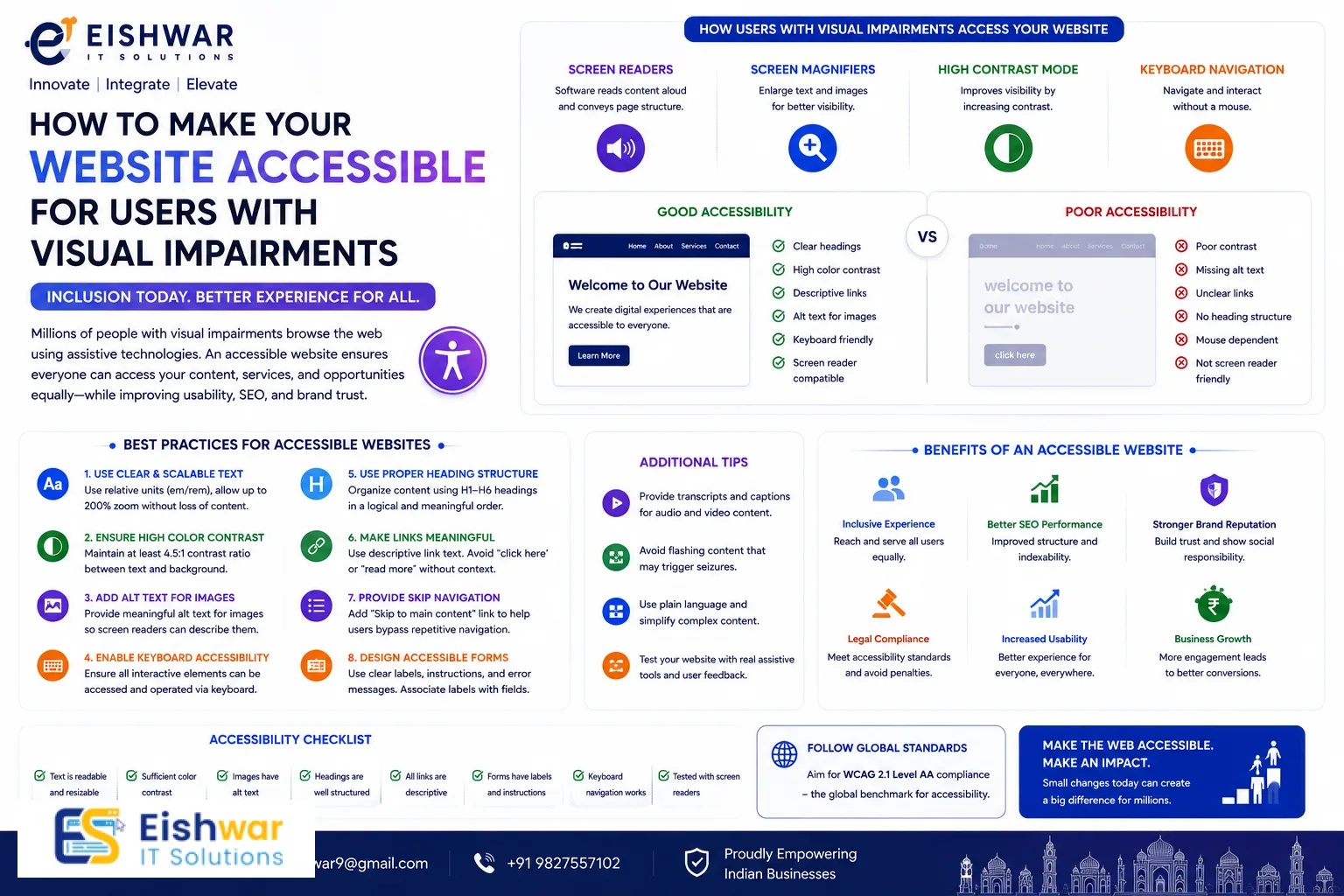
How to Make Your Website Accessible for Users with Visual Impairments
\n
Introduction
Imagine visiting a website and not being able to see the images, read the text, or navigate the menus. For millions of people with visual impairments, this is a daily reality. As a business owner or marketer, ensuring your website is accessible to everyone—including those with visual impairments—is not just a legal requirement but a smart business move. In India alone, over 40 million people have some form of visual impairment, according to the World Health Organization. By making your site accessible, you tap into a significant audience, improve user experience for all, and boost your SEO.
In this guide, we'll walk you through practical steps to make your website accessible for users with visual impairments. From screen reader compatibility and color contrast to keyboard navigation and semantic HTML, you'll learn how to create an inclusive digital experience that benefits everyone. We'll also explore common pitfalls, expert tips, and future trends to keep your site ahead of the curve.
Main Section 1: Understanding Visual Impairments and Web Accessibility
Visual impairments encompass a broad spectrum, ranging from low vision and partial sight to complete blindness. Users may rely on a variety of assistive technologies: screen readers like JAWS or NVDA that convert text to speech, magnification software that enlarges content, or high-contrast settings that make elements more distinguishable. Web accessibility means designing your site so these tools can interpret and present content effectively, ensuring no user is left behind.
Key principles from the Web Content Accessibility Guidelines (WCAG) include perceivability, operability, understandability, and robustness. For visual impairments, the focus is on text alternatives, adaptable content, and distinguishable elements. For example, a screen reader user cannot see an image, so every image needs a descriptive alt text that conveys its purpose. Similarly, a user with low vision may need to enlarge text without breaking the layout—a common issue when fixed pixel sizes are used. By following WCAG standards, you ensure your site works harmoniously with assistive technologies, creating a seamless experience for all.
Practical tip: Start by familiarizing yourself with WCAG 2.1 Level AA criteria. This is the most widely adopted standard and covers the essentials for visual accessibility. Use resources like the W3C's Web Accessibility Initiative (WAI) for detailed guidance.
Main Section 2: Practical Steps to Make Your Website Accessible
Here are actionable steps you can implement today, each with real-world examples and implementation tips:
1. Provide Text Alternatives for Non-Text Content
Every image, icon, and video should have a descriptive alt text that conveys the content or function. For decorative images, use empty alt attributes (alt="") so screen readers skip them entirely. For complex graphics like charts or infographics, provide a text summary nearby or in the alt text itself.
Example: Instead of alt="image1.jpg", use alt="Bar chart showing 2025 sales growth of 20% across all regions, with the highest growth in Asia-Pacific at 35%." This gives context and data, not just a label.
Implementation tip: Train your content team to write alt text that answers "What is this image communicating?" rather than "What is this image?" Avoid keyword stuffing—alt text is for users, not just SEO.
2. Ensure Sufficient Color Contrast
Text should have a contrast ratio of at least 4.5:1 for normal text and 3:1 for large text (18px bold or 24px regular). Use tools like WebAIM's Contrast Checker or the Colour Contrast Analyser to verify your color combinations. Avoid using color alone to convey information; add text labels, patterns, or icons as backups.
Example: Instead of a red asterisk for required fields, add the word "Required" in text. For charts, use patterns or labels alongside colors to distinguish data series.
Implementation tip: Test your color palette early in the design phase. Tools like Stark for Figma can simulate color blindness and check contrast ratios in real time.
3. Support Keyboard Navigation
All interactive elements—buttons, links, forms, menus—must be accessible via keyboard alone. Users with motor impairments or those who rely on screen readers often navigate using the Tab key, arrow keys, and Enter. Ensure a logical tab order that follows the visual layout, and provide visible focus indicators (like a highlighted outline) so users know where they are.
Action: Test your site by tabbing through it. Can you reach every link and button? Is the focus ring clearly visible against all backgrounds? Avoid removing the default focus outline without replacing it with a custom style.
Implementation tip: Use CSS to create a high-contrast focus ring, such as `outline: 2px solid #4A90D9; outline-offset: 2px;`. This ensures visibility without relying on color alone.
4. Use Semantic HTML
Semantic HTML provides structure that screen readers can interpret. Use proper heading levels (h1, h2, h3) in a logical hierarchy, and avoid using divs for everything. Landmark elements like <nav>, <main>, <article>, and <aside> help users jump to sections quickly.
Example: Use <nav> for navigation, <main> for main content, and <button> instead of <div onclick>. This ensures that assistive technologies can identify interactive elements correctly.
Implementation tip: Run an HTML validator to check for semantic errors. Tools like the W3C Nu HTML Checker can flag missing landmarks or improper heading order.
5. Provide Transcripts and Captions for Multimedia
For videos, include synchronized captions and a full transcript. Captions help users who are deaf or hard of hearing, while transcripts benefit those who are deaf-blind or prefer reading. Transcripts also improve SEO by providing text for search engines to index.
Example: For a product demo video, provide a transcript that describes both the audio and visual elements, such as "The user clicks the 'Add to Cart' button, and a confirmation message appears."
Implementation tip: Use services like Rev or Otter.ai for automated transcription, then manually edit for accuracy. Ensure captions are synchronized and include speaker identification.
6. Offer Text Resizing and Zoom Options
Users with low vision may need to enlarge text up to 200% without content overlapping or disappearing. Avoid fixed font sizes; use relative units like em or rem. Also, ensure that your layout is responsive and can accommodate zoom without horizontal scrolling.
Example: Set base font size in rem (e.g., `font-size: 1rem;`) and use CSS media queries to adjust layout at different zoom levels.
Implementation tip: Test your site at 200% zoom in the browser. Check that text doesn't overflow containers, buttons remain clickable, and navigation menus don't break.
Main Section 3: Testing Your Website for Visual Accessibility
Testing is crucial to ensure your efforts work in practice. Here's a multi-layered approach:
Automated Tools: Use WAVE, axe DevTools, or Lighthouse to scan for common issues like missing alt text, low contrast, or missing form labels. These tools catch many problems but cannot detect everything—for example, they can't judge if alt text is truly descriptive.
Manual Testing: Try navigating your site using only a keyboard. Use a screen reader like NVDA (free on Windows) or VoiceOver (built into Mac and iOS) to experience your site as a blind user would. Pay attention to how elements are announced—do they make sense out of context?
User Testing: Hire people with visual impairments to test your site. They can provide invaluable feedback that automated tools miss, such as confusing navigation flows or poorly structured content. Platforms like UserTesting or accessibility consulting firms can connect you with testers.
Regular testing ensures your site remains accessible as you add new content or features. Schedule quarterly audits and integrate accessibility checks into your CI/CD pipeline.
Expert Tips
Here are insights from accessibility experts to elevate your approach:
- Start with an audit: Before making changes, assess your current site's accessibility level. Use a checklist based on WCAG 2.1 AA standards. This baseline helps you prioritize fixes and track progress.
- Train your team: Educate designers, developers, and content creators on accessibility principles. Make it part of your workflow, not an afterthought. Consider workshops or online courses from the W3C or Deque University.
- Use ARIA wisely: Accessible Rich Internet Applications (ARIA) can enhance accessibility for dynamic content, but misuse can confuse screen readers. Follow best practices: use native HTML elements first, and only add ARIA when necessary. For example, use
aria-label for buttons without visible text, but avoid overusing role attributes. - Keep it simple: Clean, well-structured design benefits everyone. Avoid clutter and complex interactions without clear labels. A minimalist approach often improves usability for all users, including those with cognitive disabilities.
- Document your decisions: Maintain an accessibility statement that outlines your compliance level and contact information for feedback. This builds trust and transparency.
Common Mistakes
Avoid these pitfalls that can undermine your accessibility efforts:
- Poor alt text: Using vague descriptions like "image" or stuffing keywords. Alt text should describe the image's purpose, not just its presence. For example, "Smiling customer holding product" is better than "customer image."
- Ignoring focus indicators: Removing the default focus outline for aesthetic reasons. Always have a visible focus style, especially for keyboard users. A subtle but clear outline is better than none.
- Using color alone: Relying solely on color to convey meaning, like red for errors or green for success. Add text, icons, or patterns to ensure information is accessible to color-blind users.
- Inaccessible PDFs: Providing PDFs that are not tagged or readable by screen readers. Convert key content to HTML, or ensure PDFs are properly structured with headings, alt text, and a logical reading order.
- Overlooking dynamic content: Content loaded via JavaScript (like pop-ups or infinite scroll) may not be announced by screen readers. Use ARIA live regions to notify users of updates, and ensure focus is managed correctly.
- Neglecting mobile accessibility: Many users with visual impairments access the web via mobile devices. Ensure your site is responsive, touch targets are large enough (at least 44x44 pixels), and zoom gestures work.
Future Trends
Web accessibility is evolving rapidly. Keep an eye on these trends to stay ahead:
- AI-powered accessibility: Tools that automatically generate alt text using image recognition, or adjust contrast in real-time based on user preferences. While promising, these tools still require human oversight for accuracy.
- Voice interfaces: More sites integrating voice commands for navigation, benefiting users with visual impairments who may find voice interaction more intuitive than screen readers.
- Inclusive design systems: Companies adopting comprehensive design systems that include accessibility from the start, with pre-tested components and patterns. This reduces the risk of introducing inaccessible elements.
- Global regulations: Stricter laws in India and worldwide making accessibility mandatory for businesses. The European Accessibility Act and updates to the Americans with Disabilities Act (ADA) are driving compliance.
- Personalization: User preferences for font size, contrast, and color schemes being stored and applied across sites, reducing the need for manual adjustments.
FAQs
1. What is web accessibility for visual impairments?
It means designing websites so people with blindness, low vision, or color blindness can perceive, navigate, and interact with content using assistive technologies like screen readers, magnification, or high-contrast settings. This includes providing text alternatives, ensuring keyboard access, and maintaining sufficient contrast.
2. Is web accessibility only for blind users?
No. It also helps users with low vision, color blindness, motor impairments, and cognitive disabilities. Accessibility improvements often benefit all users, like better contrast that reduces eye strain, or keyboard navigation that speeds up workflows for power users.
3. Do I need to follow WCAG guidelines?
Yes, WCAG is the international standard. Following it ensures legal compliance and better user experience. Aim for at least WCAG 2.1 Level AA, which covers the most common accessibility barriers. Many countries, including India, reference WCAG in their laws.
4. How much does it cost to make a website accessible?
Costs vary. If done from the start, it's minimal—often just a matter of following best practices during design and development. Retrofitting an existing site can be more expensive, especially if major structural changes are needed, but many fixes are low-cost, like adding alt text or adjusting contrast. The ROI from increased audience reach and reduced legal risk often outweighs the investment.
5. How do I test my website for accessibility?
Use a combination of automated tools (like WAVE or axe), manual testing with a keyboard and screen reader, and user testing with people who have visual impairments. Regular testing is key, especially after major updates. Aim for quarterly audits.
6. What are the legal requirements in India?
India's Rights of Persons with Disabilities Act (2016) mandates accessibility in public websites. The government has also issued the Guidelines for Indian Government Websites (GIGW), which align with WCAG 2.0. Private businesses are encouraged to follow these standards to avoid discrimination claims.
7. Can accessibility improve my SEO?
Absolutely. Alt text, semantic HTML, and transcripts help search engines understand your content, leading to better rankings. For example, properly structured headings improve crawlability, and transcripts provide additional keyword-rich text. Many SEO best practices overlap with accessibility.
8. What is the difference between WCAG Level A, AA, and AAA?
Level A is the minimum, covering basic barriers. Level AA is the most common target, addressing major issues like contrast and keyboard access. Level AAA is the highest but is not required for all content; it includes stricter criteria like enhanced contrast and sign language for videos.
9. How do I handle CAPTCHAs for visually impaired users?
CAPTCHAs that rely on visual recognition are inaccessible. Use alternatives like audio CAPTCHAs, logic questions, or invisible CAPTCHAs (e.g., reCAPTCHA v3) that analyze user behavior without requiring interaction.
10. What are ARIA live regions and when should I use them?
ARIA live regions announce dynamic content updates (like chat messages or error notifications) to screen readers without moving focus. Use them sparingly and with appropriate politeness settings (e.g., `aria-live="polite"` for non-urgent updates).
Conclusion
Making your website accessible for users with visual impairments is not just about compliance—it's about inclusion, better user experience, and business growth. By implementing the steps in this guide—from alt text and color contrast to keyboard navigation and testing—you open your digital doors to millions of potential customers. Start today, and watch your engagement and reputation soar. Remember, accessibility is an ongoing journey, not a one-time fix. Regularly review your site, stay updated on best practices, and listen to user feedback to create a truly inclusive experience.
CTA
Ready to make your website accessible for everyone? Contact EishwarITSolution at eishwar.com for a free accessibility audit. Our experts will help you create an inclusive digital experience that drives results. Don't wait—reach out now!